OpenClaw on Mac Mini: The Complete Setup Guide
From fresh macOS install to a running personal AI assistant

What’s New
This is a living document. Updates are based on real-world installs, community feedback, and new OpenClaw features.
v1.1 - Feb 11, 2026: Nine updates based on Ray Fernando’s 4-hour OpenClaw livestream. Added Apple Keychain as recommended credential storage option alongside Bitwarden and 1Password. Added Exa.ai as web search alternative to Brave. Strengthened API spending limits warning. Added hooks setup (boot, command logger, session memory) to onboarding wizard. Updated skill installs to recommend pnpm over bun. Added shell profile reload troubleshooting note. Added Exa.ai configuration to Step 13. Added Pete Steinberger’s soul file personality tips. Added in-session slash commands reference (/compact, /new, /think, /set, /memory, /models, /restart). New Appendix A: importing chat history from ChatGPT, Anthropic, and Google Gemini. New Appendix B: local embeddings for private, free memory search.
v1.0 - Feb 8, 2026: Initial guide published.
Overview
This guide takes you from a freshly wiped Mac Mini to a fully operational OpenClaw instance. Since the machine is dedicated exclusively to OpenClaw, we’ll optimize every step for that purpose.
What you’ll end up with: A 24/7 personal AI assistant running locally on your Mac Mini, accessible via Telegram, Discord, the browser-based Control UI, or any other supported platform (WhatsApp, iMessage, Slack, etc.). It can browse the web, run shell commands, manage files, and extend itself with skills.
Time estimate: A couple of hours for the full setup.
Phase 0: Pre-Flight - Accounts, Keys, and Bots
Everything in this phase happens on your phone or current computer - not the Mac Mini. Get all accounts created, all API keys generated, and all bot tokens saved before you touch the machine.
Step 0: Set Up a Password Manager
You’re about to generate a lot of credentials: Apple ID password, Gmail password, Anthropic API key, Brave Search API key, Telegram bot token, Discord bot token, gateway token, and more. You need a single, secure place to store all of them.
If you don’t already have a password manager, pick one of these and use it for every credential in this guide:
Apple Keychain (free, built into macOS) - hardware-backed by the Secure Enclave on Apple Silicon. Credentials are encrypted on the chip itself - even Apple can’t access them. No extra software needed. You’ll have access to this once the Mac Mini is set up in Phase 1. In the meantime, use Bitwarden or 1Password on your phone for the pre-flight steps, then transfer credentials to Keychain once macOS is running.
Bitwarden (free) - open source, works on every platform. Best if you need cross-platform access from non-Apple devices.
1Password (~$3/month) - slightly better UX, widely used.
Create your account (or open Keychain), and start dropping every credential into it as you go through this guide.
Do not store credentials in Apple Notes, a text file, or “I’ll remember it.” You will not remember a Telegram bot token.
Step 1: Create a Dedicated Apple ID (During Mac Mini Setup)
You need an Apple ID for the macOS Setup Assistant, App Store (for apps like Amphetamine), and iCloud services.
Note: Creating an Apple ID via the web (appleid.apple.com) may fail if your phone number is already associated with another Apple ID. Creating it directly on the Mac Mini during the Setup Assistant typically avoids this issue.
You’ll create the Apple ID in Phase 1 (Step 3) when the Mac Mini’s Setup Assistant prompts you. Have these details ready:
Email: yourname@gmail.com (this becomes your Apple ID login)
Password: Choose a strong, unique password (different from your Gmail password) and store it in Bitwarden/1Password immediately
2FA phone number: Your primary phone number
Name: Your real name
This approach keeps things simple: one email address (yourname@gmail.com) anchors everything on the Mac Mini, including macOS, App Store, Google OAuth, and OpenClaw system operations.
Step 2: Prepare Your Dedicated Google/Gmail Account (Infrastructure)
This account handles all the behind-the-scenes plumbing: Google OAuth for LLM authentication in OpenClaw, the Apple ID recovery email, and as the general Google account tied to this machine. No one else will ever see this email address.
Use a dedicated Gmail account for this - either create a new one or repurpose an existing one you don’t use for anything else (e.g., yourname@gmail.com).
1. Verify you can log in at https://accounts.google.com with yourname@gmail.com.
2. Update the password if needed and store it in your password manager.
3. Enable two-factor authentication (if not already): Go to https://myaccount.google.com/security and turn on 2-Step Verification.
4. Review and remove any old recovery emails or phone numbers that are no longer relevant.
This is NOT the account you’ll use to email people. This Gmail is strictly for OpenClaw’s internal operations (OAuth, account recovery, system notifications). Recipients of emails from OpenClaw will never see this address. When you’re ready to have OpenClaw send emails on your behalf, you’ll create a separate, professional-looking email for that purpose (see Phase 10).
Important for OpenClaw OAuth: During OpenClaw onboarding (Phase 4), when the wizard asks you to authenticate with Google, use yourname@gmail.com. The OAuth tokens will be stored locally on the Mac Mini in ~/.openclaw/credentials/oauth.json.
Tip: After setting up the Apple ID, add yourname@gmail.com as the recovery email for the Apple ID to keep everything linked within your dedicated OpenClaw accounts.
Step 3: Get Your API Keys
The onboarding wizard will ask for these credentials. Get them now so you’re not scrambling mid-install. You can do all of this from your phone.
LLM Provider (pick one or more): - Anthropic API key (recommended): Get one at https://console.anthropic.com. The project creator recommends Anthropic’s Claude, specifically Opus 4.6 for best results. - OpenAI API key: Get one at https://platform.openai.com if you prefer OpenAI models. - Google OAuth: When the wizard offers Google as an auth provider, sign in with yourname@gmail.com. This uses Google’s Antigravity OAuth flow. - If you have a Claude Code (Codex) subscription, you can reuse those credentials via claude setup-token.
Web Search (recommended - pick one): - Brave Search API key (OpenClaw’s default): Get one at https://brave.com/search/api/. Free tier available. Solid general-purpose web search. - Exa.ai API key (alternative): Get one at https://exa.ai/. Exa is a neural search engine that returns higher-quality results for company research, people lookup, and code-related queries. Several experienced OpenClaw users prefer it over Brave. Free tier includes 1,000 searches/month. If you’re planning to use your agent heavily for research, Exa is worth trying.
⚠️ Set spending limits on EVERY API provider before you start the install. This is not optional. A misconfigured agent, a runaway loop, or even a heartbeat set to the wrong model can burn through API credits alarmingly fast. Go to billing settings on each platform - Anthropic, OpenAI, Google, Brave/Exa, ElevenLabs - and set a monthly cap you’re comfortable with. Start conservative ($20-50/month) and raise it once you understand your usage patterns. You can always increase limits later; you can’t un-spend money.
Save every key in your password manager as you create them. These are shown only once on most platforms - if you lose them, you’ll need to generate new ones.
Step 4: Create Your Telegram Bot
Do this on your phone (where Telegram is already installed):
1. Open Telegram and search for @BotFather. This is Telegram’s official bot for creating and managing bots. Look for the blue checkmark to make sure it’s the real one.
2. Tap Start (or type /start) to begin a conversation with BotFather.
3. Type /newbot and send it.
4. BotFather will ask: “Alright, a new bot. How are we going to call it?” - This is the display name. Type your chosen agent name (e.g., Atlas, Jarvis, Friday) and send it.
5. BotFather will ask: “Good. Now let’s choose a username for your bot.” - This is the handle, which must be globally unique and end in “bot”. Try youragent_bot. If it’s taken, try variations like youragent_ai_bot, youragent_openclaw_bot, etc. Send your choice.
6. BotFather will respond with a success message that includes your bot token. It looks something like: 7123456789:AAF1x2y3z4ABCDefghIJKlmnOPQrst-uvw. Copy this immediately and save it in your password manager. This is the only time you’ll see it without resetting.
7. Optional but recommended - set a description and profile photo:
o Type /setdescription, select your bot, and enter something like: “My personal AI assistant powered by OpenClaw.”
o Type /setuserpic, select your bot, and upload a photo or image for the avatar.
That’s it. Your Telegram bot exists but is empty - it won’t respond to anything until OpenClaw is connected to it during onboarding. The token is what you’ll paste into the onboarding wizard.
Step 5: Create Your Discord Bot Application
Do this in a browser (on your phone or the Mac Mini):
1. Go to the Discord Developer Portal: https://discord.com/developers/applications
2. Log in with your existing Discord account.
3. Click “New Application” in the top right.
4. Name it (use the same name you chose for Telegram) and click “Create”.
5. You’re now on the application’s General Information page. Note the Application ID (you may need this later for slash commands).
6. In the left sidebar, click “Bot”.
7. Under the bot’s username, click “Reset Token” (or “Copy” if it’s your first time). Copy the token immediately and save it in your password manager. Like Telegram, this is only shown once.
8. Set the bot’s display name to match your chosen agent name if it isn’t already.
9. Still on the Bot page, scroll down to “Privileged Gateway Intents” and enable:
o Message Content Intent - Required. Without this, OpenClaw can’t read messages.
o Server Members Intent - Recommended. Needed for allowlists.
10. Click “Save Changes”.
Your Discord bot application now exists with a token. You’ll use this token during the onboarding wizard. The full Discord server setup, invite URL, permissions, and OpenClaw configuration happen later in Phase 6 (Step 18).
Pre-Flight Checklist
Before touching the Mac Mini, confirm you have all of these saved:
☐ Password manager ready (Apple Keychain, Bitwarden, or 1Password)
☐ Apple ID details prepared (email, password, phone number)
☐ yourname@gmail.com accessible with 2FA enabled
☐ Anthropic API key
☐ OpenAI API key (optional)
☐ Brave Search API key
☐ Telegram bot token (from @BotFather)
☐ Discord bot token (from Developer Portal)
☐ Spending limits set on Anthropic and OpenAI
If you have all of these, you’re ready to start the Mac Mini setup. Everything from here on happens on the machine itself.
Phase 1: Fresh macOS Setup
Step 6: Erase the Mac Mini and Create Apple ID
1. On the Mac Mini (while still running its current macOS), go to System Settings > General > Transfer or Reset > Erase All Content and Settings.
2. Follow the prompts to erase. The Mac Mini will wipe everything and restart into the Setup Assistant.
3. Walk through the Setup Assistant:
o Connect to Wi-Fi.
o When prompted to sign in with an Apple ID, select “Create a new Apple ID”.
o Enter yourname@gmail.com as the email address.
o Enter the password you prepared in Step 1.
o Use your primary phone number for 2FA verification.
o Use your real name.
o Complete the verification (Apple will send a code to yourname@gmail.com and/or your phone).
o Create a local user account (this is your macOS login, separate from the Apple ID). Make this an administrator account for now - you’ll create a separate standard account for OpenClaw later during security hardening (Phase 8).
o Enable FileVault disk encryption when prompted.
4. When the Setup Assistant asks about the following, decline everything that isn’t essential:
o Location Services: Decline. OpenClaw doesn’t need them.
o Share analytics with Apple: Decline.
o Screen Time: Skip.
o Siri: Skip. You won’t be using Siri on this machine.
o “Improve Siri & Dictation”: Decline.
o Apple Intelligence: Skip. It runs background processing and sends data to Apple’s servers. This machine doesn’t need it.
o iCloud Keychain: Your call. If you enable it, credentials stored in Keychain sync across your Apple devices (convenient for accessing API keys from your MacBook or phone). If you skip it, the local Keychain still works - credentials are stored on the Mac Mini’s Secure Enclave hardware and never leave the device. Skip if you’re prioritizing air-gap isolation; enable if convenience matters more.
o Touch ID: Enable. It’s stored locally in the keyboard’s Secure Enclave, never leaves the device, and is convenient for authenticating when you’re physically at the machine.
o Apple Pay: Skip. You don’t want a payment method on a machine an AI agent has shell access to.
This machine has one job. The less it phones home or runs background services, the better.
Step 6b: Run System Updates
1. Open System Settings > General > Software Update.
2. Install any pending updates.
3. Restart if required.
Step 6c: Configure for Always-On Operation
Since this Mac Mini is dedicated to OpenClaw, configure it to stay awake and recover from power outages.
1. Open System Settings > Energy.
2. Enable “Prevent automatic sleeping when the display is off”.
3. Enable “Wake for network access”.
4. Enable “Start up automatically after a power failure”.
Optional but recommended: Install Amphetamine from the Mac App Store for more reliable sleep prevention. Once installed:
1. Launch it - it appears as a pill icon in the menu bar.
2. Click the icon > Preferences.
3. Under General:
o Enable “Launch Amphetamine at login”.
o Enable “Start session when Amphetamine launches” with duration set to Indefinitely.
o Enable “Start session after waking from sleep”.
4. Close Preferences and click the pill icon > Start New Session > Indefinitely.
The pill icon shows filled when active. Between the Energy Saver settings above and Amphetamine, this machine will stay awake through anything short of a power outage (and the “Start up automatically after a power failure” setting covers that).
Phase 2: Install Developer Prerequisites
Step 7: Install Xcode Command Line Tools
Open Terminal (Applications > Utilities > Terminal) and run:
xcode-select --install
Click “Install” on the dialog that appears. This gives you Git, compilers, and other tools OpenClaw needs. Wait for the download and installation to complete.
Step 8: Install Homebrew
Homebrew is the macOS package manager. It will make installing Node.js and other tools straightforward.
Easiest method: Open Safari on the Mac Mini, go to brew.sh, and click the copy button next to the install command. Then open Terminal and paste it.
Or type this directly into Terminal:
/bin/bash -c “$(curl -fsSL https://raw.githubusercontent.com/Homebrew/install/HEAD/install.sh)”
Follow the on-screen instructions. After installation, Homebrew will tell you to run a couple of commands to add it to your PATH. On Apple Silicon Mac Minis, it’s typically:
echo ‘eval “$(/opt/homebrew/bin/brew shellenv)”’ >> ~/.zprofile
eval “$(/opt/homebrew/bin/brew shellenv)”
Verify it works:
brew --version
Step 9: Install Node.js (Version 22 or Later)
OpenClaw requires Node.js >= 22. Install it via Homebrew:
brew install node@22
Homebrew will likely install Node 22 as “keg-only,” meaning it won’t be on your PATH by default. You’ll see a message about this. Run the following to fix it:
echo ‘export PATH=”/opt/homebrew/opt/node@22/bin:$PATH”’ >> ~/.zshrc
source ~/.zshrc
Verify:
node --version # Should show v22.x.x or higher
npm --version # Should show 10.x.x or higher
If node --version still says “command not found,” close Terminal and reopen it, then try again.
Step 10: Install pnpm (Recommended)
pnpm is recommended if you plan to build from source or hack on OpenClaw:
npm install -g pnpm
Verify:
pnpm --version
Phase 3: Install OpenClaw
Step 11: Run the OpenClaw Installer
This is the official one-liner that handles the installation. Open Safari on the Mac Mini, go to openclaw.ai, and copy the install command. Or type this into Terminal:
curl -fsSL https://openclaw.ai/install.sh | bash
The installer will detect your operating system, verify prerequisites, and install the OpenClaw CLI. You’ll see progress output confirming the installation and version details.
Alternative method (if you prefer a manual global install via npm):
npm install -g openclaw@latest
Verify the installation:
openclaw --version
Phase 4: Onboarding and Configuration
Step 12: Run the Onboarding Wizard
This is the main configuration step. The wizard walks you through everything interactively:
openclaw onboard --install-daemon
The wizard will prompt you through these decisions:
1. Local vs Remote gateway: Choose Local since you’re running directly on the Mac Mini.
2. Auth/LLM provider: Enter your Anthropic API key (or other provider credentials).
3. Chat channels: Configure Telegram (bot token from Step 4) and Discord (bot token from Step 5). If you skipped those steps, you can add channels after onboarding.
4. Pairing defaults: Sets up secure DM handling so unknown senders can’t abuse your bot.
5. Skills setup: When prompted, say “Yes” to set up skills and select pnpm as your preferred node manager (we installed it in Step 10). Avoid selecting bun - some users have reported compatibility issues with skill installs. You can skip individual skill selection for now and add them later.
6. Hooks: The wizard will ask if you want to enable hooks - automated actions triggered by specific events. Three are worth enabling:
o Boot hook: Runs a startup routine when the gateway starts, letting the agent orient itself.
o Command logger: Logs all slash commands for debugging and audit trails.
o Session memory: Automatically saves conversation context to memory when the context window gets close to its limit. This is the most important one - without it, long conversations just get truncated and context is lost. With it, the agent writes a summary to its memory files before the window fills up, so it can pick up where it left off in a new session.
Enable all three. You can always disable them later with openclaw hooks.
7. Daemon installation: The wizard will install a launchd service so the Gateway runs in the background and starts automatically on boot.
8. Gateway token: The wizard generates a security token automatically.
The --install-daemon flag is critical because it sets up the launchd service that keeps OpenClaw running 24/7, which is exactly what you want for a dedicated machine.
Important gotchas from real-world installs:
· Model string matters: When the wizard asks for your model, use the arrow keys to scroll through the list and select Opus 4.5 (the underlying model string is anthropic/claude-opus-4-6). Do not select an older Opus version - it may not be available on your API tier and will cause silent failures. You can verify your model works afterward by sending a message; if you get “(no output)” back, the model selection is likely wrong.
· Telegram allowlist by username may fail: When the wizard asks who can DM the bot, entering your Telegram username may not resolve. If it doesn’t work, get your numeric Telegram user ID by messaging @userinfobot on Telegram, then enter that number instead.
· Rate limits on Opus: If you’re on a lower Anthropic API tier, you may hit rate limits (HTTP 429) during the initial hatching session. Wait 60 seconds and try again - this is normal.
· openclaw command not found after install: The installer adds OpenClaw to your shell PATH, but your current terminal session won’t see it until you reload. Either open a new terminal window or run source ~/.zshrc. This catches most people who try to run openclaw commands immediately after the wizard finishes.
Step 13: Configure Web Search
After onboarding, configure web search if you didn’t during the wizard:
openclaw configure --section web
The wizard will first ask about your gateway location - select Local (this machine). Then it will ask about web search. Enable web_search (Brave Search) and enter your API key when prompted. Also enable web_fetch (keyless HTTP fetch) - this lets your agent read articles and web pages directly.
Alternatively, once your agent is live you can configure this in natural language: “Set up web search with my Brave API key.”
Alternative: Exa.ai for web search. If you chose Exa instead of Brave, configure it with openclaw configure --section weband select Exa when prompted, or tell your agent “Set up Exa for web search with my API key.” Exa tends to outperform Brave for research-heavy queries - company lookups, technical documentation, and people search. You can always switch later.
Step 13b: Fix the Heartbeat Model (Important Cost Savings)
OpenClaw runs a “heartbeat” check at regular intervals to monitor system health, check for pending tasks, and run scheduled cron jobs. By default, this heartbeat fires every 10 minutes and uses whatever model you set as your brain - which, if you followed our recommendation, is Opus.
The problem: Opus running every 10 minutes, 24/7, just for heartbeat checks adds up fast in API fees. The heartbeat doesn’t need a frontier model. Switch it to Haiku and extend the interval.
Edit ~/.openclaw/openclaw.json and add the following (if the bot isn’t running yet, edit the config file directly):
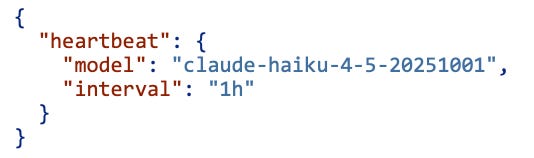
Alternatively, if your agent is already responding on Telegram or Discord, just tell it: “Change your heartbeat to use Haiku and set the interval to 1 hour instead of 30 minutes.” Your agent will present a plan and ask for your approval before making the change.
This drops the heartbeat cost to almost nothing. If you have cron jobs that need to run more frequently than hourly, adjust the interval accordingly - but for most setups, hourly is plenty.
Step 13c: A Note on Model Routing (Optional, for Later)
OpenClaw lets you assign different AI models to different tasks - one model for conversation, another for coding, another for web browsing, and so on. This is powerful for both performance and cost optimization. For example, you might use Opus 4.6 as your brain for conversation but route coding tasks to a specialized coding model, or use a cheaper model for web search.
This is an optimization you can explore once you’re up and running and comfortable with how OpenClaw works. For initial setup, a single model (Anthropic Claude) for everything is perfectly fine. You can always tell your agent to switch models later via natural language. See Phase 9 for a full model routing guide with specific recommendations for each task type.
Phase 5: Verify and Start
Step 14: Check Gateway Status
The daemon should already be running from the onboarding step. Verify:
openclaw gateway status
If it’s not running, start it manually:
openclaw gateway --port 18789 --verbose
Or manage via launchd:
# Start
launchctl start ~/Library/LaunchAgents/ai.openclaw.gateway.plist
# Stop
launchctl stop ~/Library/LaunchAgents/ai.openclaw.gateway.plist
Step 15: Run Health Checks
openclaw status
openclaw health
openclaw security audit --deep
If openclaw health shows “no auth configured,” go back and set your API key via the wizard or manually.
For a full debug report you can paste somewhere if you need help:
openclaw status --all
Step 16: Verify the Control UI
The Control UI requires a gateway token to connect. Don’t navigate to
http://127.0.0.1:18789/
directly - you’ll get a “gateway token missing” error.
Instead, run this in Terminal:
openclaw dashboard --no-open
This prints a tokenized URL (with ?token=... at the end) and copies it to your clipboard. Paste it into Safari’s address bar. You should see the OpenClaw Gateway Dashboard with Health OK in the top right.
Bookmark this URL - you’ll use it to manage your agent from the browser. The token is also stored in ~/.openclaw/openclaw.json, so you can always regenerate the URL by running the command again.
If you want it to open automatically instead:
openclaw dashboard
Phase 6: Connect Messaging Channels
Step 17: Connect Telegram
If you set up your agent’s Telegram bot during onboarding, send /start to @youragent_bot (or whatever handle you chose) on Telegram. Your first DM will return a pairing code. Approve it:
openclaw pairing list telegram
openclaw pairing approve telegram <code>
Pro Tip: Use a Telegram Group with Topics for Parallel Conversations
A single DM thread with your bot works fine at first, but it quickly becomes a wall of mixed conversations - code tasks, research questions, content drafts, random ideas - all jumbled together. This bloats the context window and confuses the agent.
The fix is Telegram’s Topics feature. Instead of DMing your bot, you create a private group and organize conversations by topic:
1. In Telegram, create a new group. Name it something like “Agent HQ.”
2. Add your bot (@youragent_bot) as the only other member.
3. Go to Group Settings > Topics and enable topics.
4. Make your bot an administrator of the group (it needs this to read and reply in topics).
5. Create topics for different workstreams. For example:
o #general - casual chat, quick questions
o #code-tasks - development work
o #research - web lookups, analysis
o #content - writing, Substack drafts
o #automations - cron jobs, scheduled tasks
6. Tell your agent to respond to every message in the group, not just messages where it’s @mentioned. You can do this by simply telling it in chat: “In this group, respond to every message, not just ones that tag you.”
Each topic gets its own conversation context, so the bot stays focused and doesn’t burn tokens loading unrelated history. When a topic is finished, just delete it and start a new one.
This is one of the highest-impact workflow improvements you can make, and it costs nothing.
Step 18: Set Up Discord (Detailed Walkthrough)
You already created the bot application and got the token in Step 5. Now you’ll create a server, invite the bot, and wire it into OpenClaw.
Step 18a: Create a Dedicated Discord Server
Do this from your existing Discord account on your phone or computer:
1. Open Discord and click the “+” button in the left sidebar.
2. Select “Create My Own”, then “For me and my friends”.
3. Name it something like “Agent HQ”.
4. Once created, create a few text channels to organize your workflows. Right-click the server name, select “Create Channel”, and add:
o #general – General chat with your agent
o #code-tasks – Coding and development requests
o #research – Research and web search tasks
o #automations – Cron jobs, webhooks, and background tasks
5. Enable Developer Mode (you’ll need this to get IDs later): Go to User Settings > App Settings > Advancedand toggle on Developer Mode.
6. Copy your Server ID: Right-click your server name in the sidebar and select “Copy Server ID”. Save this somewhere, you’ll need it for OpenClaw configuration.
7. Copy your User ID: Right-click your own username in the member list and select “Copy User ID”. Save this too.
8. Copy Channel IDs: Right-click each channel you created and select “Copy Channel ID”. Save these as well.
Step 18b: Generate the Bot Invite URL
Go back to the Discord Developer Portal (https://discord.com/developers/applications) and click on your bot application.
1. In the left sidebar, click “OAuth2”, then “URL Generator”.
2. Under Scopes, check:
o bot
o applications.commands (if you want slash commands)
3. Under Bot Permissions, check:
o Send Messages
o Read Message History
o Attach Files
o Use Slash Commands
o Add Reactions
o Embed Links
Do not grant Administrator unless you’re debugging and fully trust the setup.
4. Copy the generated URL at the bottom of the page.
5. Open the URL in your browser, select your Agent HQ server, and click “Authorize”.
Your bot should now appear in your server’s member list (it will show as offline until OpenClaw connects).
Step 18c: Configure OpenClaw with the Bot Token
If you already provided the Discord token during the onboarding wizard (Step 12), you can skip this. Otherwise, set it now:
Option A – Environment variable:
export DISCORD_BOT_TOKEN=”your-bot-token-here”
Option B – Configuration file (edit ~/.openclaw/openclaw.json):
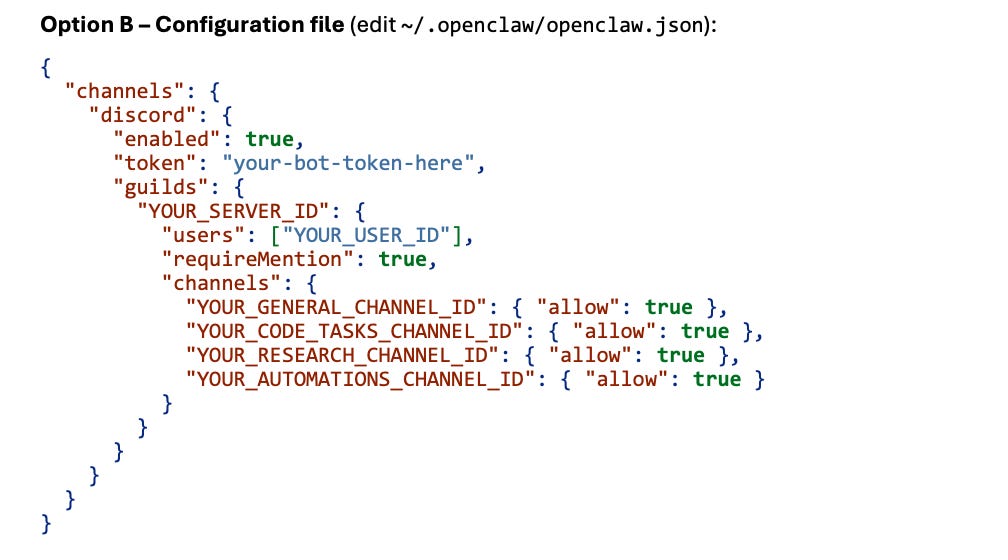
Replace YOUR_SERVER_ID, YOUR_USER_ID, and the channel IDs with the values you copied in Step 18a.
The requireMention: true setting means your agent only responds when you @mention it in server channels. This prevents it from responding to every message. In DMs, your agent always responds.
The users allowlist restricts who can interact with the bot in your server to just you.
Step 18d: Restart the Gateway and Verify
# Restart the gateway to pick up the new config
openclaw gateway restart
# Check that Discord is connected
openclaw channels status --probe
Now go to your Discord server and test:
1. In a server channel: Type @YourAgent hello.
2. In a DM: Click on your bot in the member list and send it a direct message.
If this is your first DM and your user ID is NOT in the config’s users allowlist, you’ll get a pairing code. Approve it:
openclaw pairing list discord
openclaw pairing approve discord <code>
If your user ID is already in the users allowlist (as configured in Step 18c), pairing is automatic - no code needed.
Discord Tips
Back up your config: Some OpenClaw commands can overwrite openclaw.json. Keep a backup: cp ~/.openclaw/openclaw.json ~/.openclaw/openclaw.json.bak
If the bot connects but never replies in a channel: Your guild/channel allowlist may be denying the channel. Check that the channel IDs in your config match what you copied.
If you see “Used disallowed intents”: Go back to the Developer Portal and make sure Message Content Intent is enabled, then restart the gateway.
Thread support: OpenClaw handles Discord threads automatically. Each thread gets its own conversation session, keeping contexts separate.
Step 19: Adding More Channels Later
You can always connect additional channels after initial setup. OpenClaw supports WhatsApp, Slack, Signal, iMessage, Microsoft Teams, Matrix, and more. Just run:
openclaw channels login
Or configure them through the Control UI.
Step 20: Test End-to-End
Send a test message:
openclaw message send --target +15555550123 --message “Hello from OpenClaw”
Or simply DM your agent on whichever messaging platform you connected.
Step 20b: Gmail Integration (Future Step)
The Gmail skill that lets OpenClaw send and read email on your behalf is not set up now. Your infrastructure Gmail (yourname@gmail.com) is for behind-the-scenes plumbing only.
When you’re ready to have OpenClaw email people, see Phase 10: Set Up Outbound Email below.
Phase 7: Install the macOS Companion App (Optional but Recommended)
Step 21: Download and Install the macOS App
The macOS companion app provides a menu bar interface for controlling OpenClaw. It requires macOS 14+.
1. Download the app from the official releases page at https://github.com/openclaw/openclaw/releases or from https://openclaw.ai.
2. Drag OpenClaw.app to your Applications folder.
3. Launch it.
Step 22: Grant macOS Permissions
On first launch, macOS will prompt you for several permissions. Grant all of them:
Notifications: For message alerts and gateway status.
Accessibility: For system integration.
Microphone: For voice features (optional but useful).
Speech Recognition: For voice wake (optional).
Automation/AppleScript: For system control capabilities.
You can manage these later in System Settings > Privacy & Security.
Step 23: Configure the App
· Ensure the app is set to Local mode so it connects to your local gateway.
· The menu bar icon shows gateway status and provides quick access to chat, voice wake controls, and settings.
· The app manages the gateway lifecycle and shows native notifications.
Phase 8: Security Hardening
This is the most important phase. OpenClaw is powerful because it has broad access to your machine, your accounts, and your data. That power is also the risk. The goal here isn’t perfect security (that doesn’t exist with an AI agent that has shell access). The goal is containment: when something goes wrong, it breaks small.
These steps are drawn from real-world hardening guides by security practitioners who have deployed OpenClaw in production.
Step 24: Update to Latest Version
A critical vulnerability (CVE-2026-25253) was found in versions before 2026.1.29. Always run the latest:
npm install -g openclaw@latest
openclaw --version # Verify 2026.1.29 or later
After updating, restart the gateway and verify everything still works:
openclaw gateway restart
# Wait 10 seconds for the gateway to start, then:
openclaw channels status --probe
Step 25: Create a Separate Admin Account and Downgrade Your Daily User
Right now you’re logged in with an admin account (from the Setup Assistant). You want OpenClaw running under a standard (non-admin) user so it can’t modify system files, install software, or escalate privileges.
Create the admin account:
1. Open System Settings > Users & Groups.
2. Click “Add User…” (you may need to unlock with your password).
3. Set the account type to Administrator.
4. Full name: Mac Admin (or whatever you prefer).
5. Account name: macadmin.
6. Set a strong password and save it in your password manager.
7. Click Create User.
Authorize the new account for FileVault:
If FileVault is enabled (it should be - check System Settings > Privacy & Security > FileVault), the new account won’t appear at the login screen until you authorize it. This is the step most guides skip and it will lock you out if you don’t do it.
Open Terminal and run:
sudo fdesetup add -usertoadd macadmin
It will ask for three things in this order: 1. Password - your current account password (your primary account), to authorize sudo. 2. Enter the user name - type your current account’s short username (e.g., yourusername). This is the existing FileVault-authorized user confirming the addition. 3. Enter the password for user ‘yourusername’ - your current account password again. 4. Enter the password for the added user ‘macadmin’ - the Mac Admin password you just created.
Important: After this, use Apple menu > Restart (not Log Out). FileVault changes require a full restart to take effect. After restart, both accounts should appear at the login screen.
Downgrade your daily account:
1. Log in as Mac Admin at the login screen.
2. Go to System Settings > Users & Groups.
3. Click the (i) next to your original account (your primary account).
4. Uncheck “Allow this user to administer this computer”. macOS will warn you - confirm it.
5. Log out of Mac Admin.
6. Log back in to your original (now standard) account.
You cannot demote your own account while logged into it - that’s why you must log in as Mac Admin to make this change.
From here on, you’ll use the standard account for day-to-day OpenClaw operations. When you need to install something or run system updates, macOS will prompt for the Mac Admin password - you don’t need to switch accounts for most tasks.
Why this matters: If OpenClaw or a malicious skill tries to run sudo or modify system files, it will fail. The blast radius of any compromise is limited to the user’s home directory.
Step 26: Enable the macOS Firewall
1. Open System Settings > Network > Firewall.
2. Turn the firewall on.
3. Click Options:
o Enable “Block all incoming connections” (you can relax this later if needed).
o Enable “Enable stealth mode” (the Mac Mini won’t respond to pings or connection probes from the network).
This ensures nobody can reach into the Mac Mini from your local network or beyond. Note: Tailscale (next step) still works with “Block all incoming” enabled - it routes through its own virtual network interface, not the physical one.
Step 27: Install Tailscale for Remote Access
You’ll want to manage the Mac Mini from your MacBook or phone without being physically in front of it. Tailscale creates a private encrypted mesh network between your devices - no ports exposed to the internet.
1. Download Tailscale from the App Store on the Mac Mini (macOS will prompt you for the admin password - enter the credentials for the admin account you created in Step 25).
2. Launch Tailscale and sign in (you can use your Google account yourname@gmail.com or create a Tailscale account).
3. Install Tailscale on your MacBook and/or phone as well.
4. Once both devices are on the same Tailnet, you can SSH into the Mac Mini from your MacBook using its Tailscale IP address.
Enable SSH on the Mac Mini: Go to System Settings > General > Sharing and turn on Remote Login. macOS will prompt for admin credentials - enter the admin account password from Step 25. No need to switch accounts.
Now from your MacBook, you can reach the Mac Mini from anywhere:
ssh yourusername@100.x.x.x # Use the Tailscale IP
You can also access the OpenClaw Control UI remotely from your MacBook over Tailscale. Since the gateway is bound to loopback (127.0.0.1), you can’t connect to it directly via the Tailscale IP. Instead, use SSH port forwarding:
ssh -L 18789:127.0.0.1:18789 yourusername@100.x.x.x
Then open
http://127.0.0.1:18789/?token=YOUR_GATEWAY_TOKEN
in your MacBook’s browser. Get the tokenized URL by running openclaw dashboard --no-open on the Mac Mini (via SSH).
Why this matters: One of the most common real-world failures is the agent going down while you’re away from the machine. Without remote access, you’re stuck until you’re physically back. Tailscale solves this without exposing any ports to the public internet.
Step 28: Lock Down File Permissions
Everything in ~/.openclaw can contain secrets: API keys, OAuth tokens, channel credentials, conversation history. Lock it down:
chmod 700 ~/.openclaw
chmod 600 ~/.openclaw/openclaw.json
chmod -R 600 ~/.openclaw/credentials/
chmod -R 600 ~/.openclaw/agents/*/agent/auth-profiles.json
This ensures only your user account can read these files. If another process or user on the machine is compromised, they can’t access your OpenClaw secrets.
Note: If you run openclaw doctor later and it creates new directories (like ~/.openclaw/credentials/), re-run chmod 700 ~/.openclaw/credentials afterward - newly created directories default to 755 (world-readable).
Step 29: Verify Network Exposure
Confirm your gateway is only listening on loopback (localhost) and not exposed to the network:
openclaw gateway status
Look for bind=loopback (127.0.0.1) in the output. If it says bind=0.0.0.0 or any other address, edit ~/.openclaw/openclaw.jsonand set “bind”: “loopback” under the gateway section, then restart the gateway.
Step 30: Set API Key Spending Limits
A runaway agent or a compromised session can burn through API credits fast. Set spending caps:
· Anthropic: Go to https://console.anthropic.com, navigate to your billing settings, and set a monthly spending limit.
· OpenAI (if using): Go to https://platform.openai.com, navigate to billing, and set a hard limit.
Pick a number you’re comfortable losing in a worst case. You can always raise it later.
Step 31: Configure SOUL.md Security Constraints
OpenClaw uses a SOUL.md file to define your agent’s identity, behavior, and constraints. The “what it doesn’t do” section is just as important as its capabilities.
Edit ~/.openclaw/workspace/SOUL.md (or create it during onboarding). This is where your agent’s personality, identity, and constraints live. Include constraints like:
## What You Never Do
CRITICAL: Never execute commands with sudo or attempt privilege escalation.
CRITICAL: Never share API keys, tokens, or credentials in any message or output.
CRITICAL: Never install skills or extensions without explicit approval from me.
CRITICAL: Never send messages to anyone I haven’t explicitly approved.
CRITICAL: Never modify files outside of ~/.openclaw/workspace/.
CRITICAL: Never make purchases or financial transactions of any kind.
CRITICAL: Never access or process content from unknown or untrusted sources without asking first.
## How You Work
For any multi-step task, complex operation, or anything that modifies files, sends messages, or calls external services: ALWAYS present your plan first and wait for my approval before executing. Tell me what you’re going to do, which tools or services you’ll use, and what the expected outcome is. Do not proceed until I confirm.
The CRITICAL prefix matters - testing suggests these instructions are more reliably followed by the model.
Customize this list based on what you want your agent to do and not do. Be specific. Vague instructions get ignored under pressure from prompt injection.
Making your soul file actually good. The security constraints above are essential, but your soul file is also where you define your agent’s personality and communication style. Pete Steinberger (an early OpenClaw power user) shared advice that many in the community have adopted:
Tell it to stop hedging. Delete every “it depends” and “there are pros and cons.” If it genuinely thinks one option is better, it should say so and say why.
It should never open with “Great question!” or “I’d be happy to help.” The first words before the answer should be the answer.
Humor is welcome - not forced jokes, just natural wit that comes from being sharp.
If you’re about to do something dumb, it should tell you directly. Charm over cruelty, but no sugarcoating.
It’s not a corporate drone or a chatbot. It’s a trusted thinking partner who happens to have perfect memory - the kind of friend you’d call at 2am with a problem.
Add communication style preferences to your soul file alongside the security constraints. The combination of strong boundaries and genuine personality is what makes an agent actually useful to talk to.
Step 32: Run Security Diagnostics
openclaw doctor
openclaw security audit --deep
openclaw doctor will ask a few interactive questions - say Yes to creating the OAuth directory and enabling zsh shell completion. It surfaces risky or misconfigured DM policies. security audit --deep checks credential storage permissions, gateway authentication, browser control exposure, and session logging.
If either command flags issues, fix them before proceeding. For example, if the audit warns that your credentials directory is readable by others, fix it with chmod 700 ~/.openclaw/credentials. Don’t skip this step.
For a full debug report:
openclaw status --all
Step 33: Review Sandboxing
The default agents.defaults.sandbox.mode: “non-main” means group/channel sessions run sandboxed (in Docker containers) while your main agent runs on the host. This is a reasonable default for a dedicated machine. Leave it unless you have a specific reason to change it.
Step 34: Audit Skills Before Installing
OpenClaw’s skills marketplace (ClawHub) has no curation or moderation. A security researcher demonstrated this by uploading a benign skill, inflating its download count, and watching developers from multiple countries install it blindly. It could have contained anything.
Before installing any third-party skill:
# Read the skill’s code before installing
cat /path/to/skill/SKILL.md
# Search for suspicious patterns
grep -r “api” /path/to/skill/
grep -r “token” /path/to/skill/
grep -r “credential” /path/to/skill/
grep -r “curl” /path/to/skill/
grep -r “fetch” /path/to/skill/
Rule of thumb: If you didn’t write it and didn’t read the code, don’t install it. Stick to bundled skills until you’re comfortable auditing third-party ones.
Step 35: Emergency Procedures
Print this out or bookmark it. When something goes wrong, you won’t want to be searching for commands.
Kill the agent immediately:
openclaw gateway stop
# If that doesn’t work:
pkill -f openclaw
If you suspect a compromise, do all of these in order:
Stop the gateway (above).
Revoke ALL API keys - Anthropic, OpenAI, Brave Search, anything you connected. Don’t investigate first; revoke first.
Rotate your Discord bot token: Go to the Discord Developer Portal, Bot section, click “Reset Token.”
Rotate your Telegram bot token: Message @BotFather, use /revoke to generate a new token.
Review logs for unauthorized actions:
# Gateway logs
cat /tmp/openclaw/openclaw-*.log
# Session transcripts
cat ~/.openclaw/agents/*/sessions/*.jsonl
Check for persistence - things a compromised agent might leave behind:
# Check for unexpected cron jobs
crontab -l
# Check for unexpected SSH keys
cat ~/.ssh/authorized_keys
# Check for modified startup scripts
cat ~/.zprofile
cat ~/.zshrc
Do NOT restart until you understand what happened.
If in doubt, wipe and start over. That’s the beauty of a dedicated machine with this guide - you can rebuild from scratch in an afternoon.
Phase 9: Ongoing Maintenance and Monitoring
Optimize Costs with Multi-Model Routing
Now that your agent is running and you’re comfortable with how it works, it’s time to stop paying premium prices for tasks that don’t need premium models. OpenClaw lets you assign different AI models to different tasks. The heartbeat fix in Step 13b was your first taste of this - here’s the full picture.
The concept: Think of your agent as having a “brain” (what you chat with) and “muscles” (specialized tasks the brain delegates to). You want a smart, personable brain, but the muscles don’t all need to be the most expensive model available.
Best model for each task (this will be revised periodically):
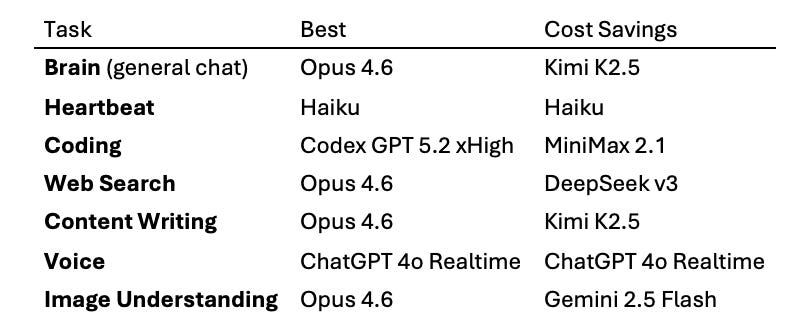
Source: Alex Finn’s cost optimization guide for OpenClaw. See Helpful Resources at the end of this document.
How to set this up: You don’t need to edit config files. Just tell your agent in natural language:
“Use Deepseek v3 whenever you’re browsing the web or crawling pages.”
“Use Codex GPT 5.2 xHigh when I ask you to code.”
“Use Gemini 2.5 Flash for image understanding tasks.”
Your agent will ask for the relevant API keys, set up the routing, and confirm. Each provider requires its own API key, so you’ll need accounts with the providers you want to use.
Recommendation for getting started: Don’t change everything at once. Start with the biggest cost savers:
1. Heartbeat → Haiku, hourly (already done in Step 13b - this is your single biggest cost saver)
2. Image understanding → Gemini 2.5 Flash (free tier available - saves the most per call)
3. Web search → Deepseek v3 (very cheap - saves significantly on browse-heavy workflows)
4. Keep Opus as your brain until you’re ready to experiment with Kimi K2.5
You can always switch back. Tell your agent “go back to using Opus for web search” and it’s done.
Source: Alex Finn’s cost optimization guide for OpenClaw. See Helpful Resources at the end of this document.
Regular Updates
# Check for updates
openclaw update --channel stable
# Or via npm
npm install -g openclaw@latest
# After updating, verify
openclaw --version
openclaw doctor
Review Logs Regularly
Get in the habit of checking what your agent has been doing:
# Quick look at recent gateway activity
openclaw channels status --probe
# Full status
openclaw status --all
If you see tool executions you didn’t request, messages you didn’t send, or configuration changes you didn’t make, treat it as a potential compromise and follow the emergency procedures above.
Set Up a Daily Self-Review
Rather than relying on yourself to manually audit the agent’s files, have your agent do it. Tell it (via Telegram or Discord):
“Set up a daily cron job that runs each morning. Review your own core files - MEMORY.md, SOUL.md, identity.md, agents.md, and your skills folder. Look for outdated information, conflicting rules, undocumented workflows, skills you created but no longer use, and lessons from recent failures. Summarize what you found and recommend any changes. Do not make changes without my approval.”
The bot will create a cron job and message you each morning with a summary. This keeps your agent’s configuration from drifting over weeks of use - memories accumulate, skills pile up, and subtle conflicts creep in. Automated daily housekeeping catches these before they become problems.
Review MEMORY.md Yourself Monthly
The daily self-review catches technical drift, but you should still personally read through ~/.openclaw/workspace/MEMORY.md once a month. After a few weeks of use, this file can contain a detailed profile: your work situation, relationships, schedule patterns, health details, frustrations, and more. If this file is exfiltrated (via prompt injection, for example), it’s a goldmine for social engineering.
Set a monthly calendar reminder to:
1. Read through the memory file.
2. Delete anything you wouldn’t want an attacker to see.
3. Remove anything that’s no longer accurate.
Rotate Credentials Quarterly
Set a calendar reminder to rotate:
Anthropic/OpenAI API keys
Discord bot token
Telegram bot token
Brave Search API key
Any other tokens you’ve connected
Back Up Your Configuration
Before making changes or updating, back up your config:
cp ~/.openclaw/openclaw.json ~/.openclaw/openclaw.json.bak
Some OpenClaw commands can overwrite your configuration file. A backup takes two seconds and saves you from re-doing your setup.
Key Directories to Know

Useful Commands Reference
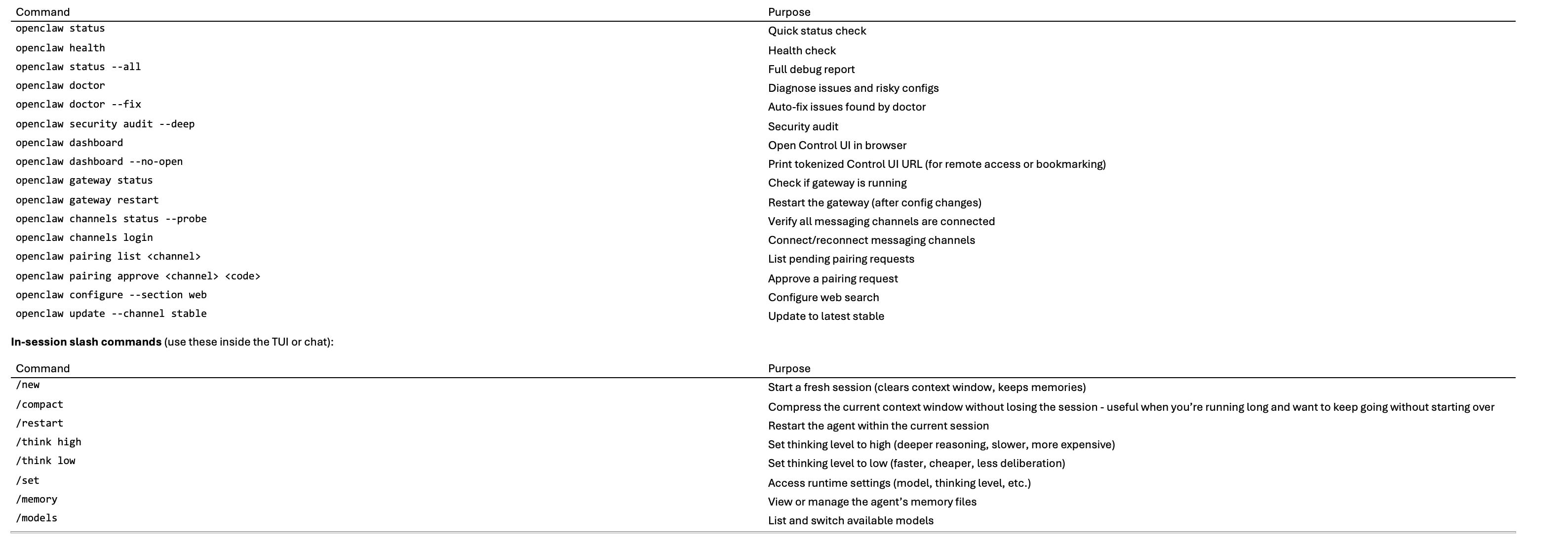
Phase 10: Set Up Outbound Email (Future Step)
When you’re ready to have your agent send emails to other people on your behalf, come back to this section.
Why a Separate Email?
Your infrastructure Gmail (yourname@gmail.com) handles OAuth, account recovery, and system operations. No one ever sees it. But when your agent emails a recruiter, colleague, or contact, the “from” address is visible and should be clearly yours.
Step A: Prepare Your Outbound Email
Use a separate Gmail account that has your real name on it - this is what recipients will see when your agent sends email on your behalf. For example: firstname.lastname@gmail.com. Your agent is your assistant, not the author.
1. Verify you can log in at https://accounts.google.com with firstname.lastname@gmail.com.
2. Update the password if needed and save it in your password manager.
3. Enable two-factor authentication if not already on.
Future upgrade: If you later want something more polished, you can set up a custom domain email via Google Workspace (e.g., you@yourdomain.com or ai@yourdomain.com, ~$7/month). But firstname.lastname@gmail.com works fine to start.
Step B: Connect the Gmail Skill
1. Install the Gmail skill through the Control UI or by asking your agent (e.g., “Set up Gmail integration”).
2. When prompted for authentication, sign in with firstname.lastname@gmail.com (not the infrastructure Gmail).
3. Grant the requested permissions (read, send, manage labels, etc.).
4. Test by asking your agent: “Send a test email to [your personal email].”
Step C: Set Up Proactive Email Triggers (Optional)
For Gmail Pub/Sub triggers (so your agent can react to incoming emails automatically), see the official docs: https://docs.openclaw.ai (search for “Gmail Pub/Sub triggers”).
Key point: OpenClaw supports multiple account connections. Your infrastructure Gmail (yourname@gmail.com) handles the plumbing, your outbound email (firstname.lastname@gmail.com) handles human-facing communication, and they never overlap.
Quick Reference: The Critical Path
If you want the shortest path from wiped machine to working assistant, here’s the condensed version:
# 0. BEFORE wiping: Prepare Apple ID details and secure yourname@gmail.com
# 1. Erase Mac Mini via System Settings > General > Transfer or Reset
# Create Apple ID during Setup Assistant with yourname@gmail.com
# Decline Location Services, Siri, analytics, screen time
# 2. After setup, open Terminal
xcode-select --install
# 3. Install Homebrew
/bin/bash -c “$(curl -fsSL https://raw.githubusercontent.com/Homebrew/install/HEAD/install.sh)”
# (follow the PATH instructions it gives you)
# 4. Install Node.js
brew install node@22
# 5. Install OpenClaw
curl -fsSL https://openclaw.ai/install.sh | bash
# 6. Run onboarding (have your Anthropic API key ready)
openclaw onboard --install-daemon
# 7. Fix the heartbeat (biggest single cost saver)
# Edit ~/.openclaw/openclaw.json, add:
# “heartbeat”: { “model”: “claude-haiku-4-5-20251001”, “interval”: “1h” }
# 8. Verify
openclaw health
# 9. SECURITY: Run the audit, lock permissions, set up Tailscale
openclaw security audit --deep
chmod 700 ~/.openclaw
chmod 600 ~/.openclaw/openclaw.json
# 10. Open dashboard and start chatting
openclaw dashboard --no-open # Copy the tokenized URL to your browser
Helpful Resources
Official Docs: https://docs.openclaw.ai
Getting Started Guide: https://docs.openclaw.ai/start/getting-started
macOS Platform Guide: https://docs.openclaw.ai/platforms/macos
GitHub Repository: https://github.com/openclaw/openclaw
Discord Community: Linked from the GitHub repo
Troubleshooting: https://docs.openclaw.ai/help
Cost Optimization: Alex Finn’s “How to Run OpenClaw for Dirt Cheap” (YouTube) - model routing recommendations by task type
Appendix A: Importing Chat History from ChatGPT, Anthropic, and Google Gemini
One of the most powerful things you can do with OpenClaw is bootstrap your agent’s memory with years of conversation history from other AI platforms. Instead of starting from a blank slate, your agent inherits context about your projects, decisions, preferences, and thought patterns from thousands of prior conversations. Ray Fernando demonstrated this on his livestream, importing 3 years of ChatGPT history (4,000+ conversations) and his full Anthropic export into his OpenClaw instance.
What You’ll Need
Your ChatGPT data export (Settings > Data Controls > Export Data - OpenAI emails you a download link)
Your Anthropic/Claude data export (Settings > Export Data - same process)
Your Google Gemini data export (Go to https://takeout.google.com
> sign in > find "My Activity" > select only "Gemini Apps" from the activity data list > export as JSON. Google emails you a download link, which can take a few hours.) A tool capable of writing a conversion script. Cursor with Opus 4.6 works well for this, but Claude Code or any LLM-assisted coding tool will do.
The OpenClaw GitHub repo cloned locally (so the LLM can understand the memory file format)
Step 1: Export Your Data
ChatGPT: Go to Settings > Data Controls > Export Data. OpenAI will email you a download link within a few minutes. The export is a zip file containing JSON files with all your conversations, memories, and account data. This can be large - three years of heavy use produced a 138MB export for Ray.
Anthropic/Claude: Go to Settings > Export Data. Anthropic will email a similar download. This includes conversations and any Projects you’ve created, which are especially valuable since they contain your curated workflows and system prompts.
Google Gemini: Go to https://takeout.google.com and sign in with the Google account you use for Gemini. Gemini chat history is nested under your activity data, not listed as a standalone service. Scroll down to "My Activity" (under M in the alphabetical list). Don't just check the box - click the button labeled "All activity data included" (or "Select specific activity data"). In the popup that appears, click "Deselect all" at the top, then scroll down and check only "Gemini Apps". Click OK. Back on the main list, click the "Multiple Formats" button next to "My Activity" and set the format to JSON (it often defaults to HTML, which is harder to parse). Then click "Next step", choose your delivery method (email is simplest), and create the export. Google will email you a download link - this can take anywhere from minutes to hours depending on your history size.
Step 2: Let an LLM Investigate the File Structure
Don’t try to parse these exports manually - they’re deeply nested JSON with hashed filenames that humans can’t make sense of. Drop the exported files into a Cursor workspace (or similar) and prompt:
“I just exported my ChatGPT history, my Anthropic/Claude history, and my Google Gemini history. The files are in this directory. I want to extract memories from these conversations and convert them into OpenClaw-compatible markdown files. First, investigate the file structure of all three exports and report what you find. Also, clone the OpenClaw repo (https://github.com/openclaw/openclaw) into a temp directory so you can understand how OpenClaw’s memory system works - look at the workspace and memory directory structure.”
The key technique here - and this is what made Ray’s approach so effective - is telling the LLM to clone the OpenClaw repo so it understands the target format. Without that context, the LLM is guessing at the memory file structure. With it, the LLM knows exactly how to format the output.
If you’re using Cursor, kick off parallel agents to investigate - one for each export format and one for the OpenClaw repo. This runs much faster than sequential investigation.
Step 3: Generate and Run the Conversion Script
Ask the LLM to write a Python script that:
Reads all three JSON exports (ChatGPT, Anthropic, Gemini)
Extracts key information: topic summaries, decisions made, project context, personal preferences
Generates OpenClaw-compatible markdown files organized under a memory-imports/ subdirectory (keeping imports separate from the agent’s own notes)
Creates an index file for efficient search
Handles Anthropic Projects as separate high-value memory files (these contain your curated system prompts and workflows - they translate directly into agent context)
The script should be purely additive - it should never touch your SOUL.md or AGENTS.md files.
Step 4: Transfer to the Mac Mini
If you generated the files on a different machine:
# On the source machine, compress the output
tar czf openclaw-import.tar.gz openclaw-import/
# Transfer to Mac Mini via AirDrop, network share, or SCP
# Using SCP over Tailscale:
scp openclaw-import.tar.gz yourusername@100.x.x.x:~/Downloads/
# Or just AirDrop the tar file from your Mac - it’s usually the simplest option
On the Mac Mini:
cd ~/Downloads
tar xzf openclaw-import.tar.gz
cd openclaw-import
chmod +x import.sh
./import.sh
Step 5: Enable Memory Search and Indexing
After importing, enable memory search so the agent can actually find and reference the imported history:
openclaw config set memory.search.enable true
Then restart the gateway:
openclaw gateway restart
The agent will begin indexing the imported files. With 1,000+ files, this takes a few minutes. You can test it by asking your agent about something you know is in your history - it should be able to find and reference it.
Important Notes
Import after completing the soul file bootstrap, not before. Give the agent its identity first, then backfill memories. Think of it as: birth first, memories second. The agent needs its personality and purpose before it has history to draw on.
Keep imported memories in a separate subdirectory (memory-imports/chatgpt/, memory-imports/claude/, memory-imports/gemini/) so they don’t get mixed with the agent’s own notes going forward. OpenClaw’s memory search indexes all markdown files under memory/, so subdirectories are fine - they’ll still be searchable.
The conversion script will vary based on your specific export structure. Don’t expect a one-size-fits-all script - this is why you use an LLM to generate one tailored to your data. Each provider’s export format has quirks.
Anthropic Projects are particularly valuable because they contain your curated system prompts and workflows - prioritize these in your import.
Google Takeout exports may include other Gemini-related data beyond chat history (like Gemini activity logs). The conversion script should focus on conversation content.
Google Gemini chat history is buried in Takeout. It's under "My Activity", not listed as a standalone service. Make sure you set the export format to JSON - the default HTML format is harder for scripts to parse.
Source your shell profile after import if the openclaw command isn’t found. Open a new terminal window or run source ~/.zshrc to reload the path.
Appendix B: Local Embeddings for Private Memory Search
By default, OpenClaw’s memory search sends text to an external embedding API (typically Anthropic or OpenAI) to generate vector embeddings for semantic search. This works well but has two downsides: it costs money per query, and your memory content leaves your machine.
If you want memory search that’s completely local, free, and private, you can configure OpenClaw to use local embeddings via node-llama-cpp with a small GGUF embedding model. This runs entirely on your Mac Mini - no API calls, no data leaving the machine.
Setup
# Enable memory search
openclaw config set memory.search.enable true
# Set the embedding provider to local
openclaw config set memory.search.provider local
# Restart the gateway to apply
openclaw gateway restart
OpenClaw will download a lightweight GGUF embedding model automatically and begin indexing your memory files. With 16GB of RAM on the base Mac Mini, this runs comfortably - embedding models are tiny compared to full LLMs.
What to Expect
First-time indexing of 1,000+ files takes a few minutes. After that, new files are indexed incrementally.
Search quality is very good for keyword and topic matching. It won’t match the quality of frontier embedding APIs for subtle semantic queries, but for “what did I decide about X” style lookups, it’s more than sufficient.
Zero ongoing cost. Zero data leaving your machine.
When to Use Local vs. API Embeddings
Local (recommended for most users): Free, private, fast enough. Ideal if you’re air-gapping your setup or keeping costs minimal.
API-based (Anthropic, OpenAI, or Gemini): Better semantic quality for large memory stores. Use if you have thousands of files and need precise recall on nuanced queries, and you don’t mind the cost or data leaving your machine.
Gemini free tier: A middle ground - if you have a Gemini API key already configured, it’s the cheapest API-based fallback with decent quality.
Thanks a lot!
Thank you. Here via Ray Fernando